
Sign in
The first screen for a new visitor on mobile. They can sign in with email or social login, or continue in a no-wallet preview.

A visual reference for the Peridot app, for our team and our users. See every screen and every state on desktop and mobile: deposit, waiting, success, error.
Signing in, demo mode, and switching between Easy and Expert.
The first screen for a new visitor on mobile. They can sign in with email or social login, or continue in a no-wallet preview.
When someone first enters a Stellar market, this sheet offers a one-tap login (wallet created automatically) or connecting their own Stellar wallet.
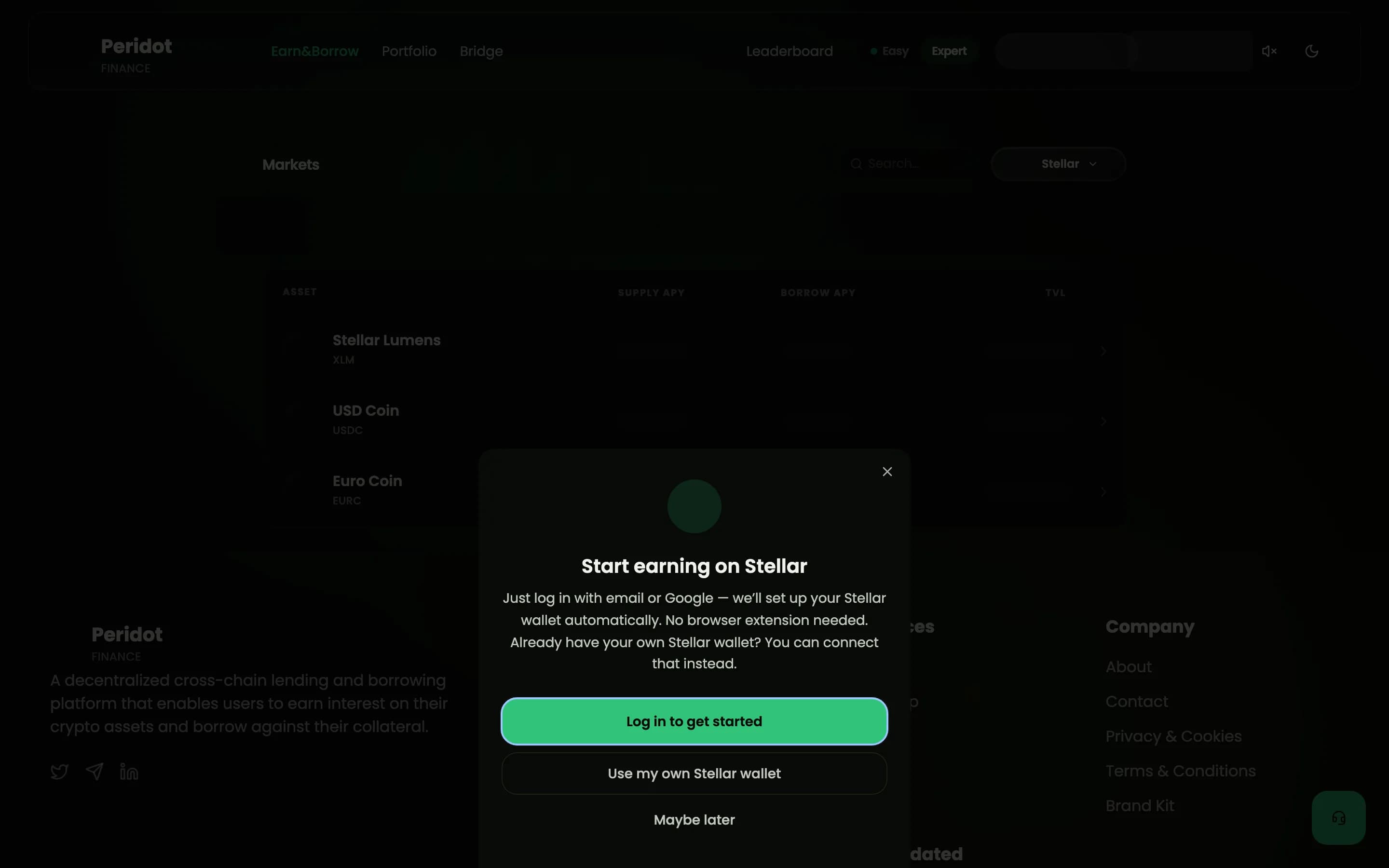
The guided experience: deposit, portfolio, activity, account.
The main Easy Mode card. People pick an amount and deposit to start earning interest, with no crypto jargon.

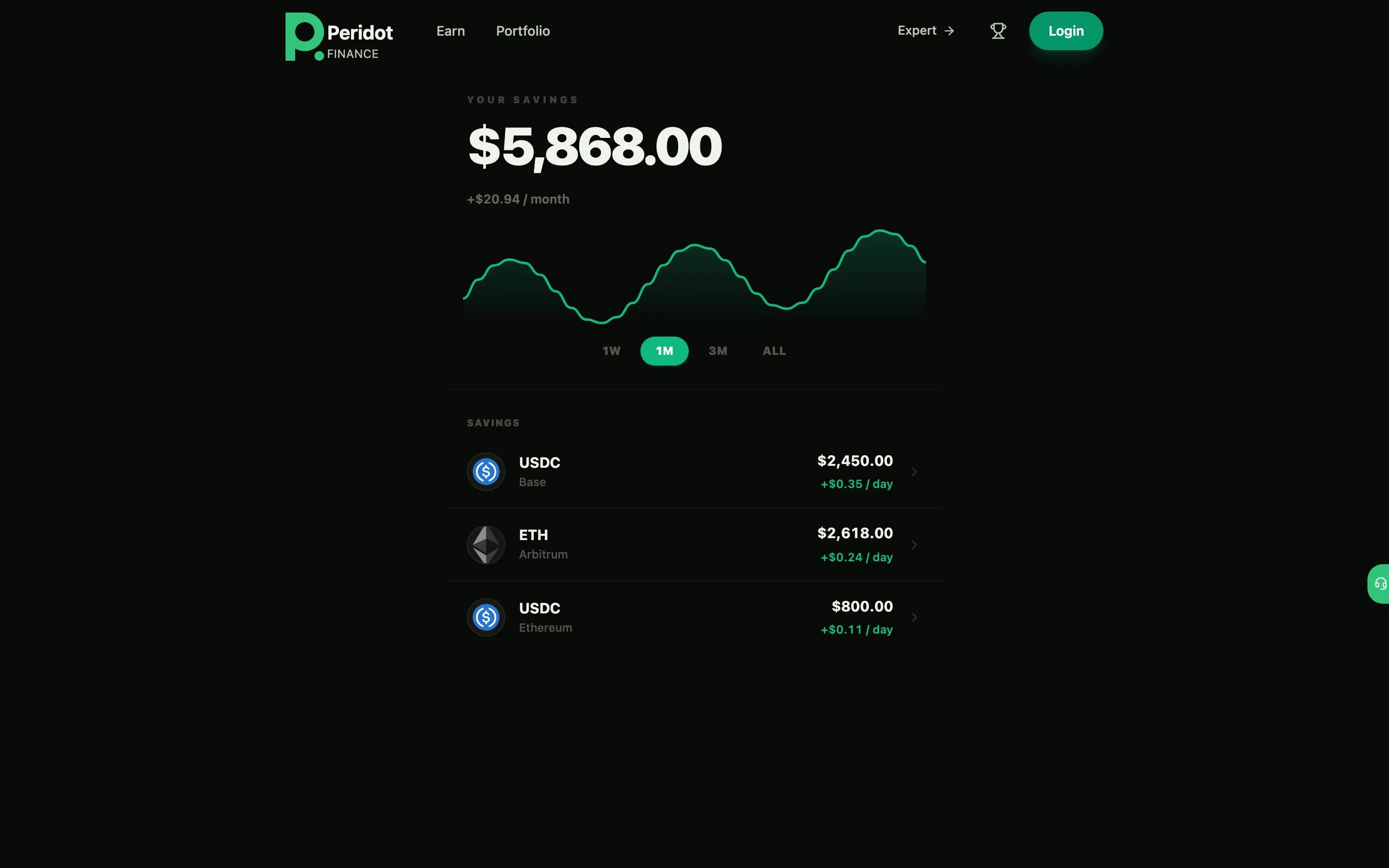
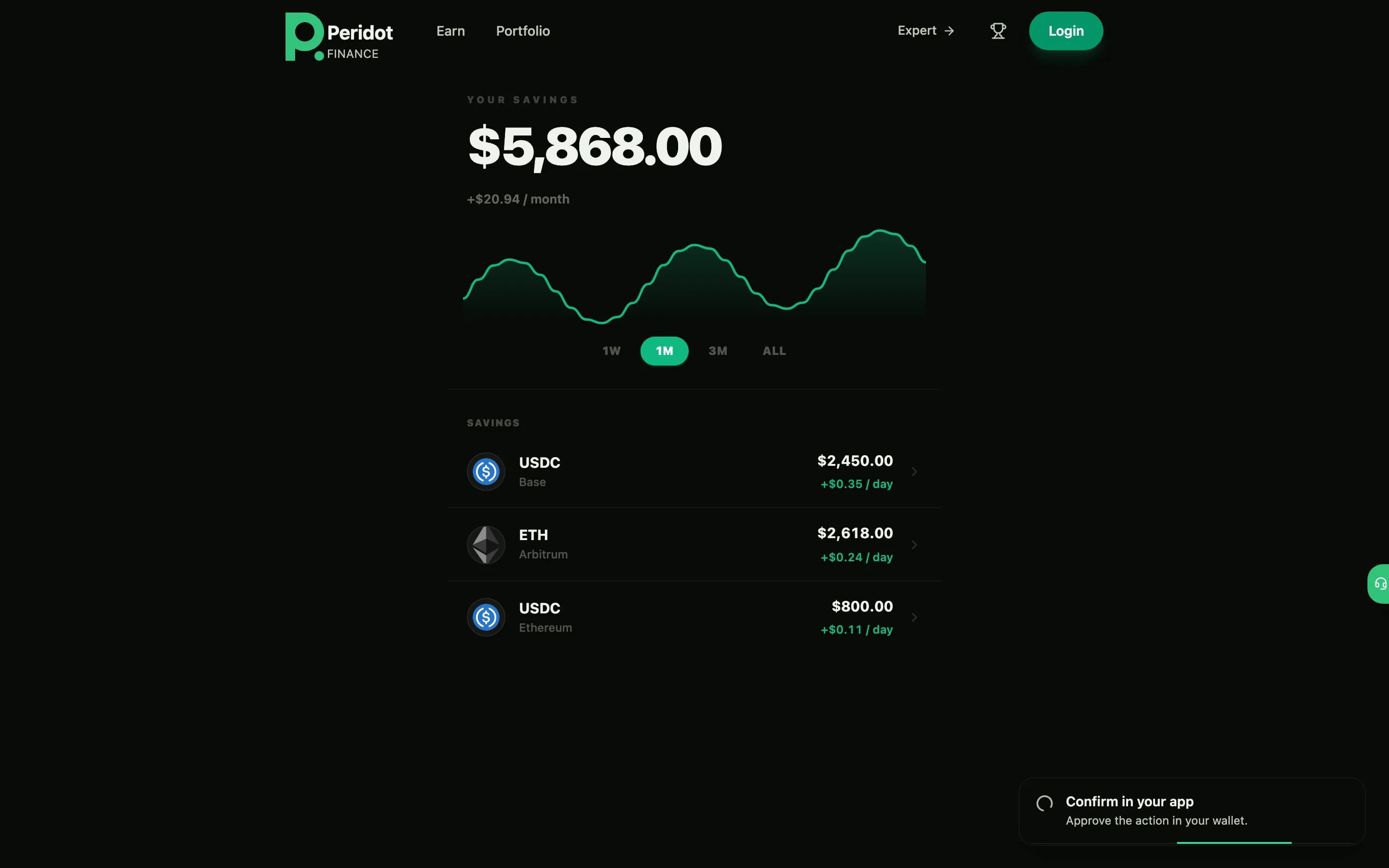
A clear view of total savings and each position, with a value chart and the interest earned over time.
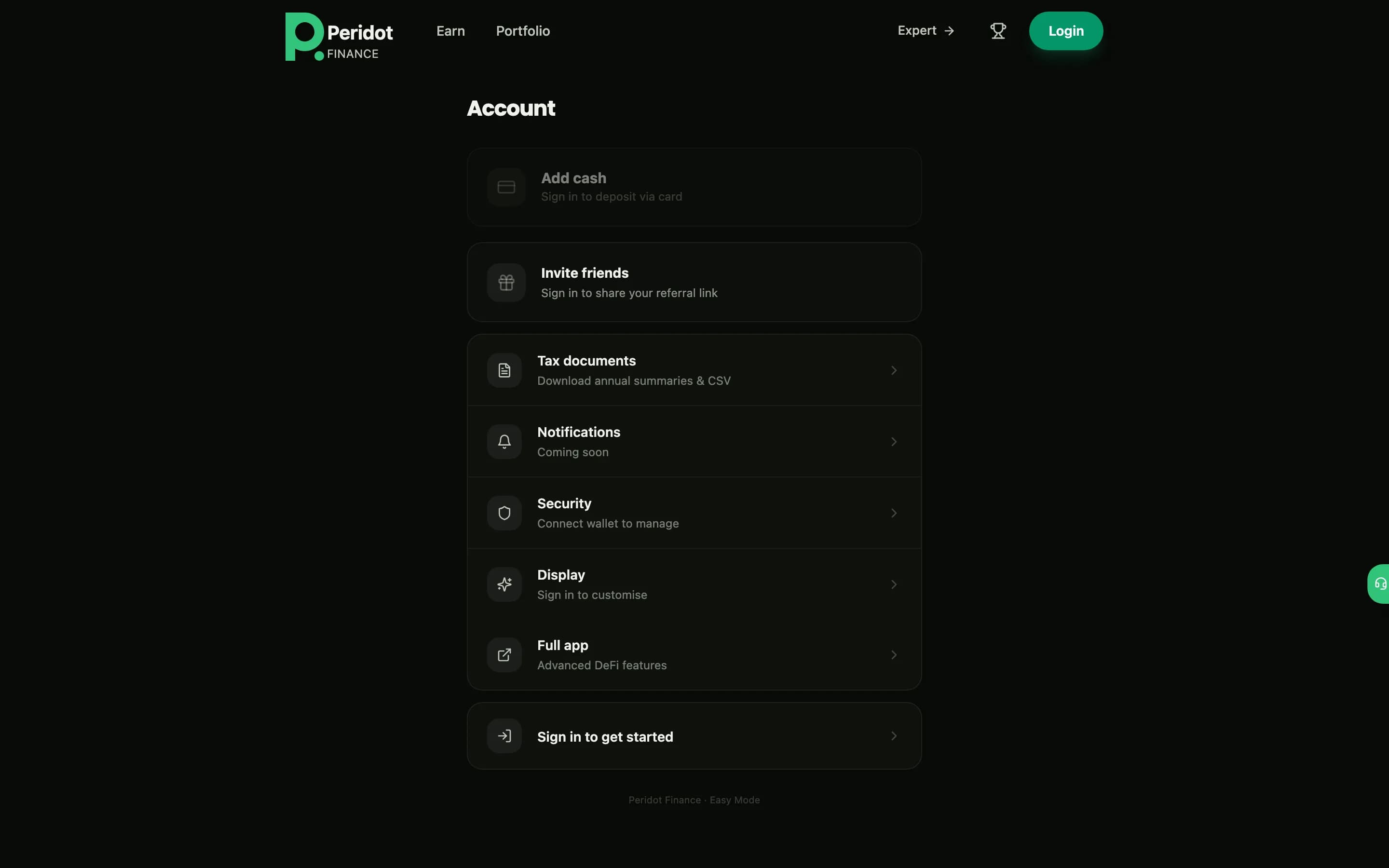
Everything in one place: add cash, copy a referral code, manage wallets, switch theme, and sign out.
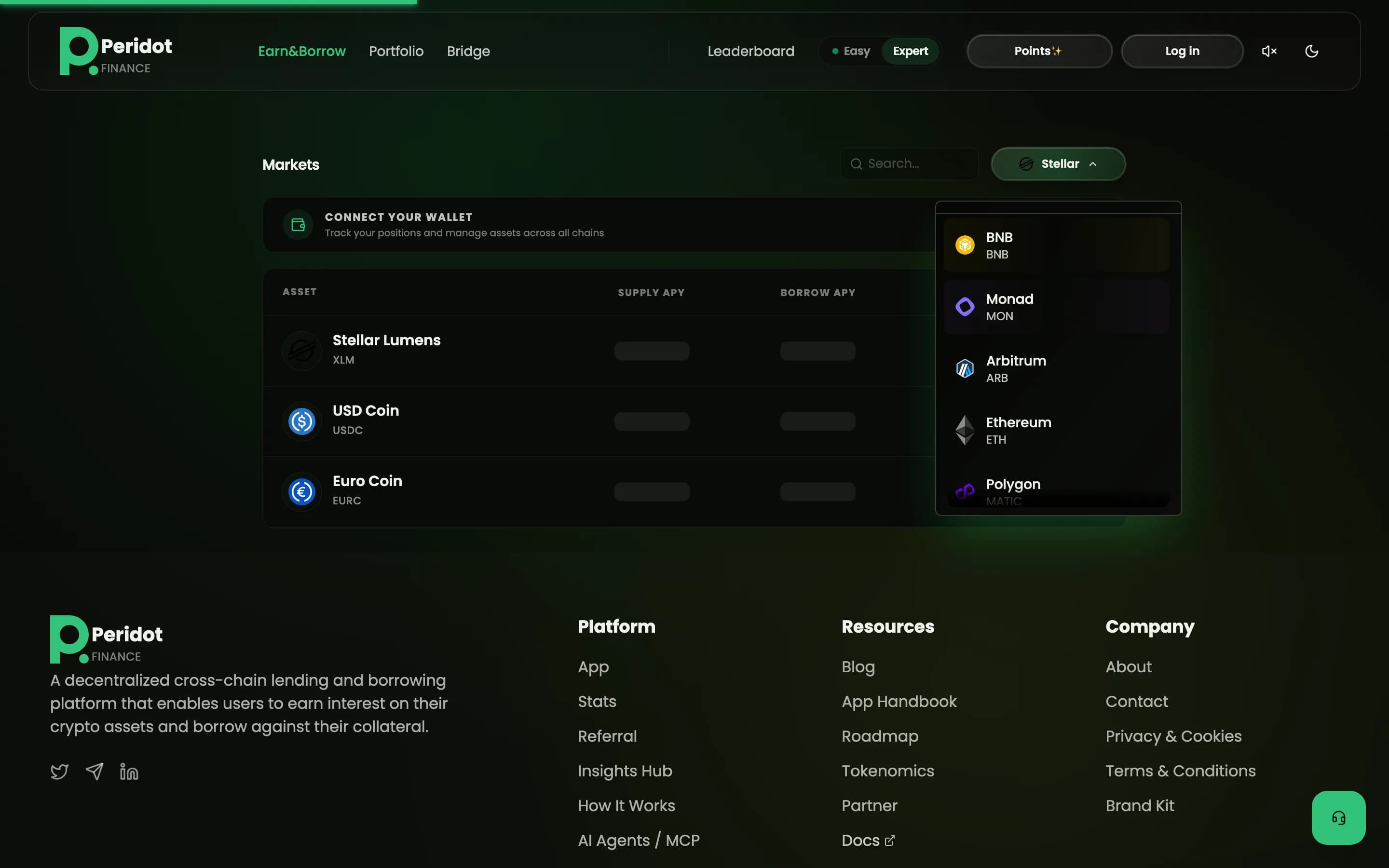
The market table, network selector, and detailed metrics.
The Expert view lists every market with supply / borrow rates and TVL per network, for people who want the detail.
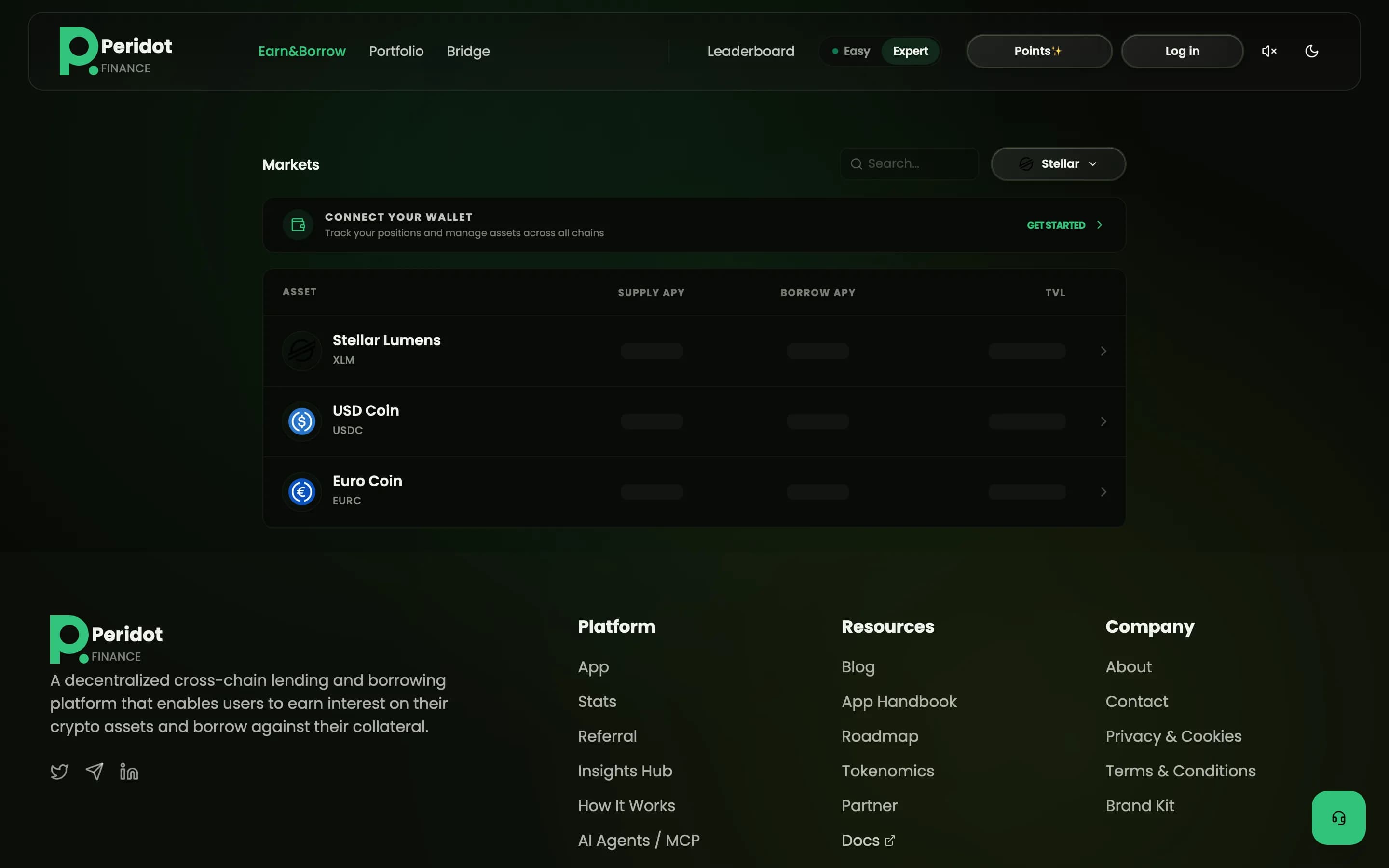
Switch the active network to view its markets. Hub chains host the pools; spokes provide cross-chain access.
What people see while waiting, on success, and on errors.
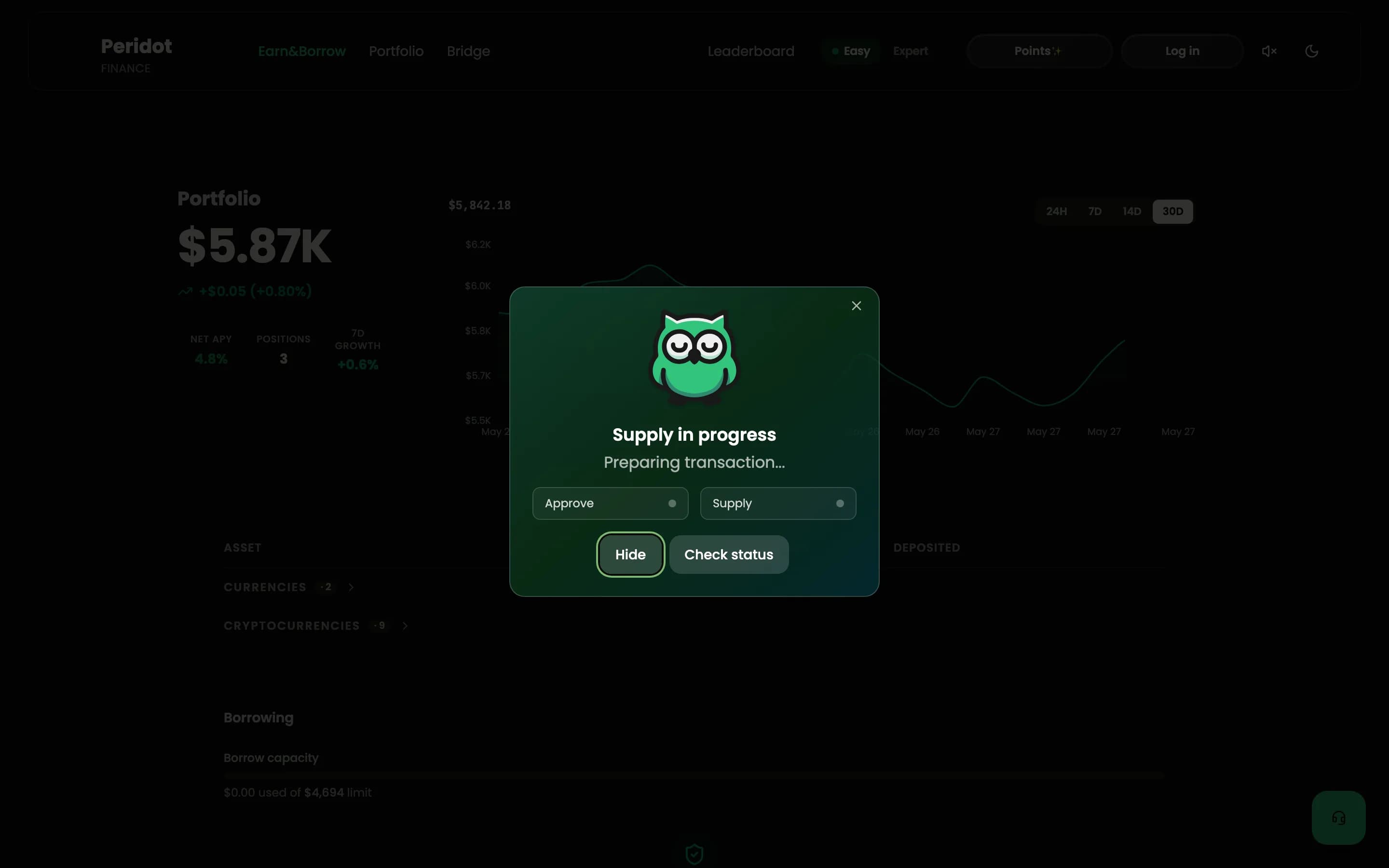
Right after starting a deposit. The app waits for confirmation; with an embedded wallet this is an in-app prompt, not an external wallet app.
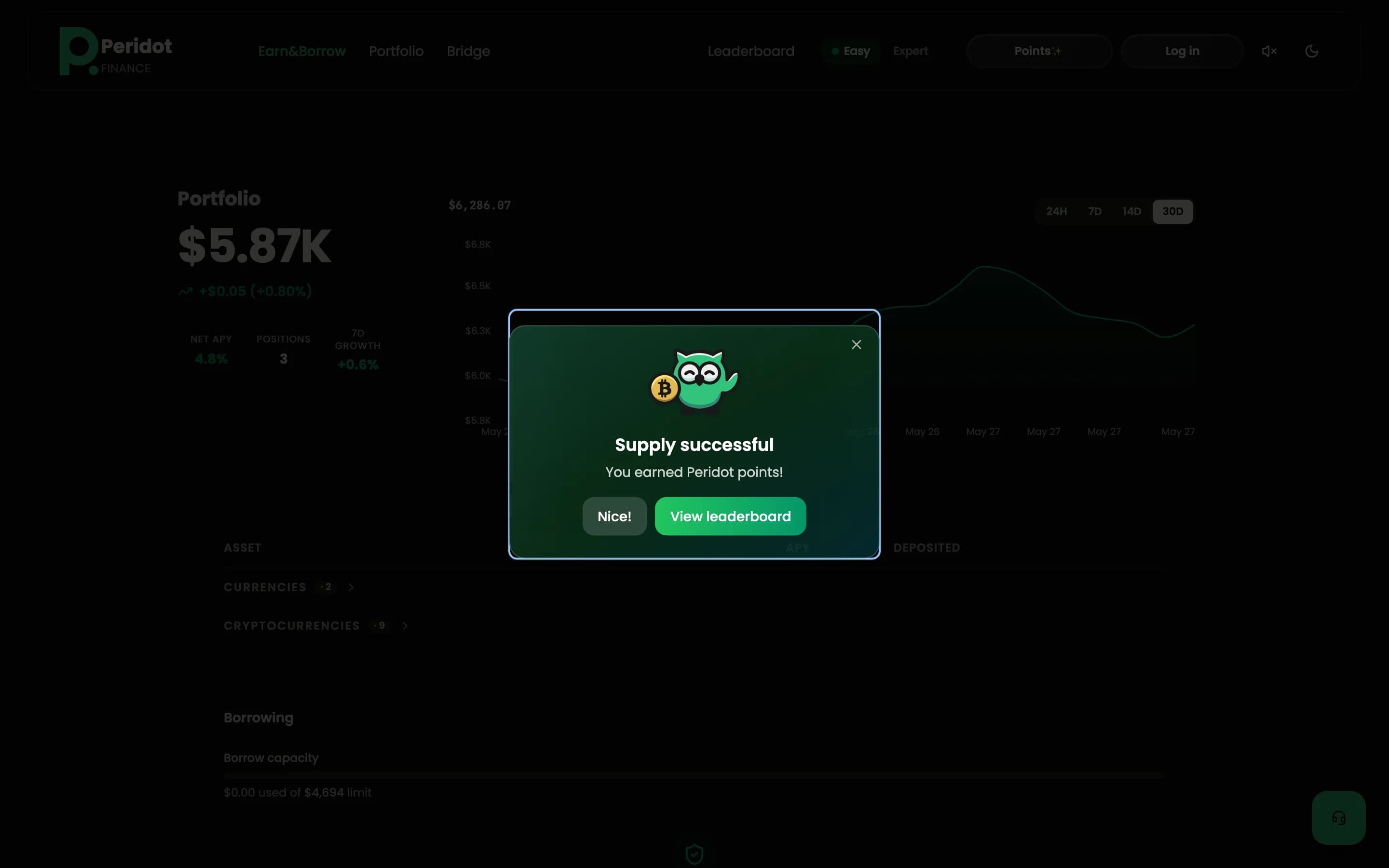
The deposit is confirmed. A short celebration names the amount and rate, awards points, and clears itself after a few seconds.
When the balance can't cover the deposit plus the network fee. The dialog explains it and offers a retry or a way to add funds.

The input sheets and the toast notifications.
On desktop, progress shows as a compact toast in the corner instead of a full dialog, unobtrusive while a transaction settles.
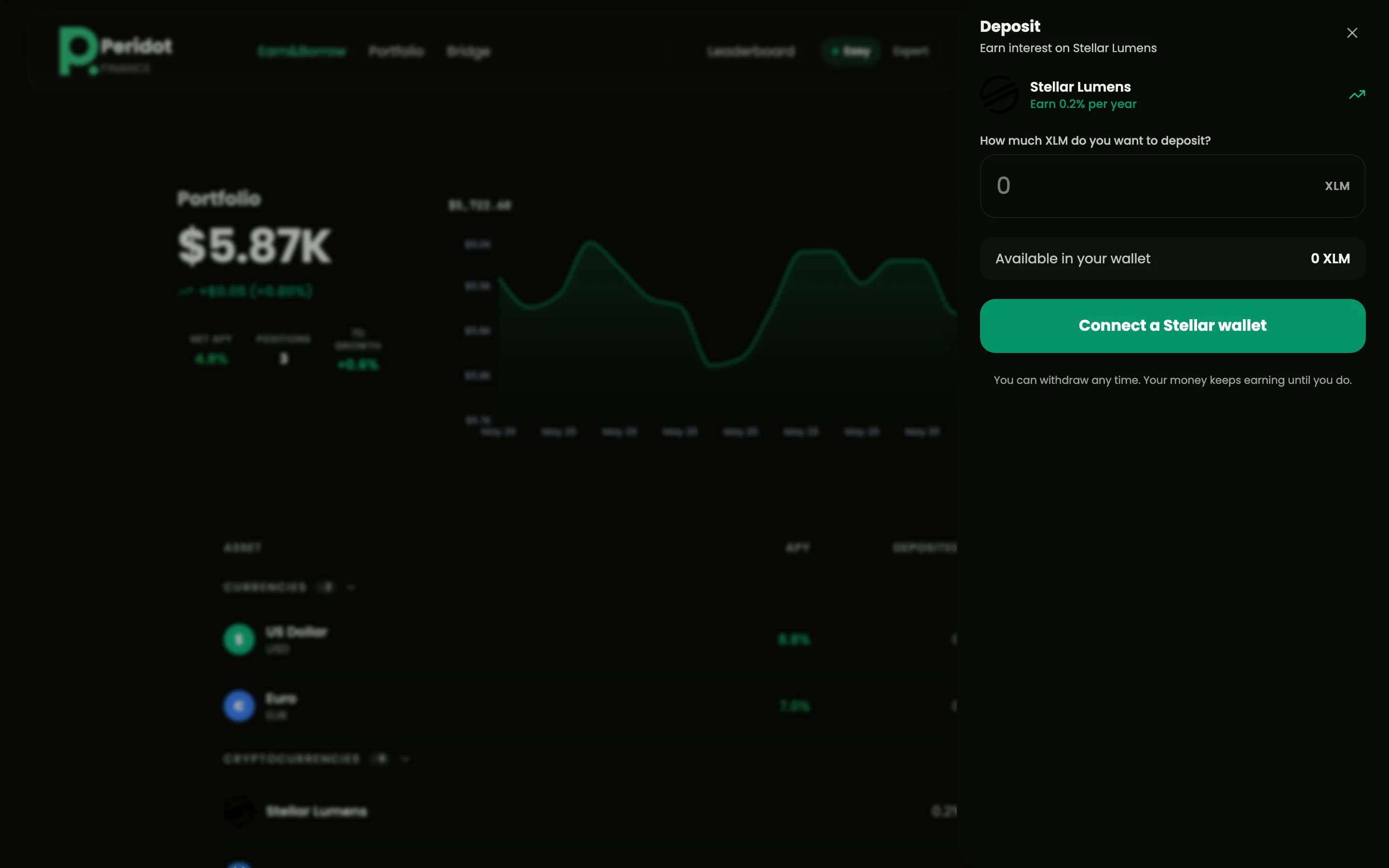
The deposit input sheet (a bottom sheet on mobile, a side drawer on desktop): choose an amount, review the rate, and confirm.
Talk directly to a human